

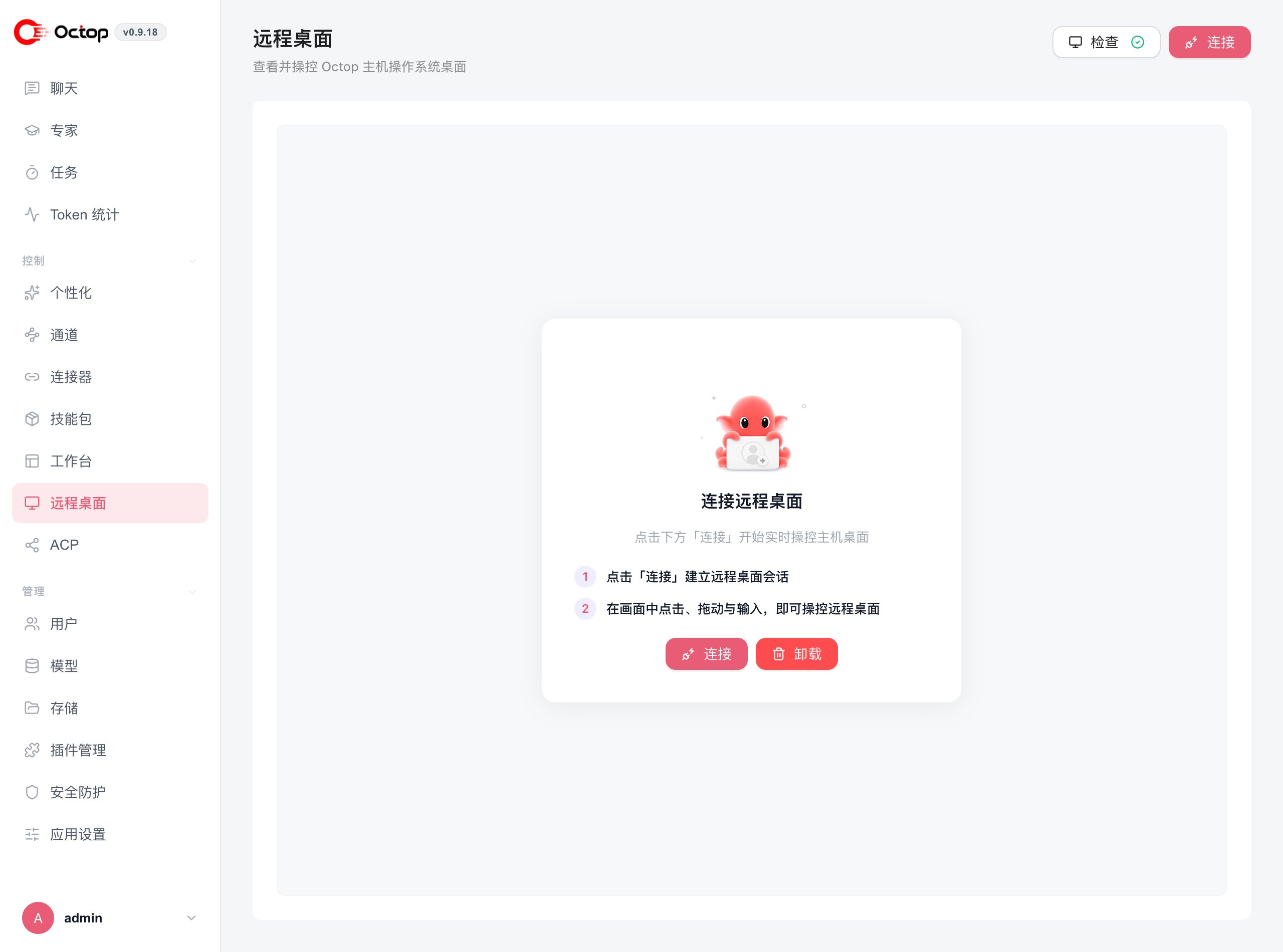
Connect
1
Open Server
In the sidebar, open Remote Desktop, then select the Server tab.
2
Check the environment
Click Check. If something is missing, follow the dialog to install it.
- On a Linux server with no graphical session, Octop can install a virtual desktop for you. Enterprise Linux 10 and newer cannot install that desktop.
- On macOS, grant Screen Recording and Accessibility to the app or terminal that runs Octop, then restart Octop and click Recheck.
- On Windows, Octop captures the host screen directly.
3
Connect and control
Click Connect. Use the canvas like a normal desktop. You can change Resolution and Frame rate, send shortcuts such as App menu, Terminal, or Files, and enter Fullscreen.