Browser
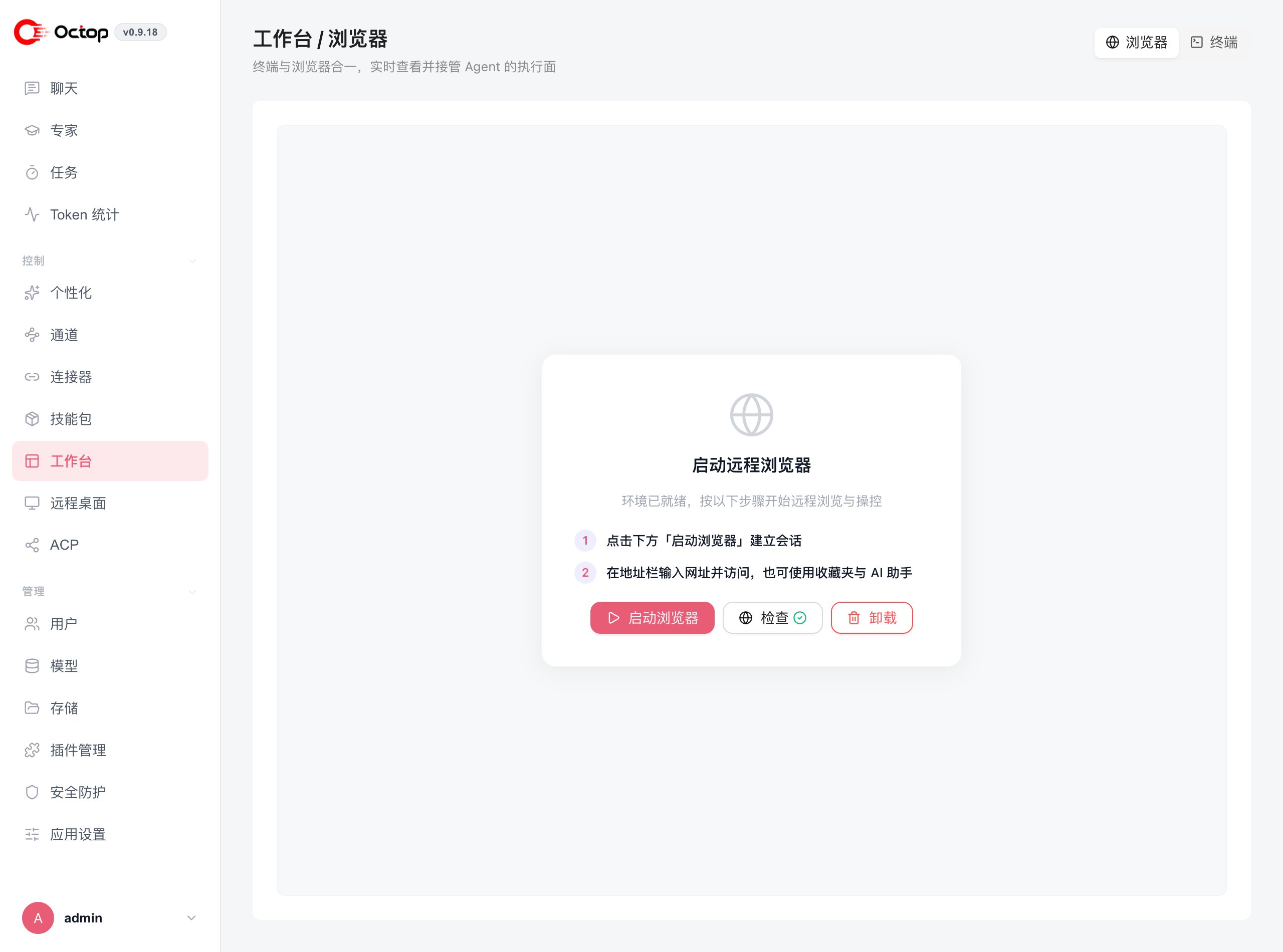
The browser tab drives a real Chromium instance over CDP with persistent profiles, so agents can navigate, fill forms, and capture screenshots — and you can step in at any point.Enable the browser
The browser requires thebrowser extra. Install it using the method that matches how you installed Octop:
octop run, then open:
OCTOP_BROWSER_IDLE_TIMEOUT_MINUTES). Login cookies stay on disk, so the next launch keeps the session.
The Docker image does not ship Playwright Chromium. Install the browser extra if you need this tab.
Use the browser in chat
Ask your agent to browse in plain language. For example:- “Go to news.ycombinator.com and give me the top 5 headlines.”
- “Take a screenshot of https://example.com.”
- “Fill in the sign-up form at [URL] with these details…”
Terminal
The Terminal tab in the Workbench embeds a full interactive shell in the browser. You can open several session tabs, run commands directly, and ask the agent to suggest commands, explain output, or diagnose errors — without leaving Octop. Workbench Terminal and the chat Dock terminal share the same session, so commands and output stay aligned whichever surface you use.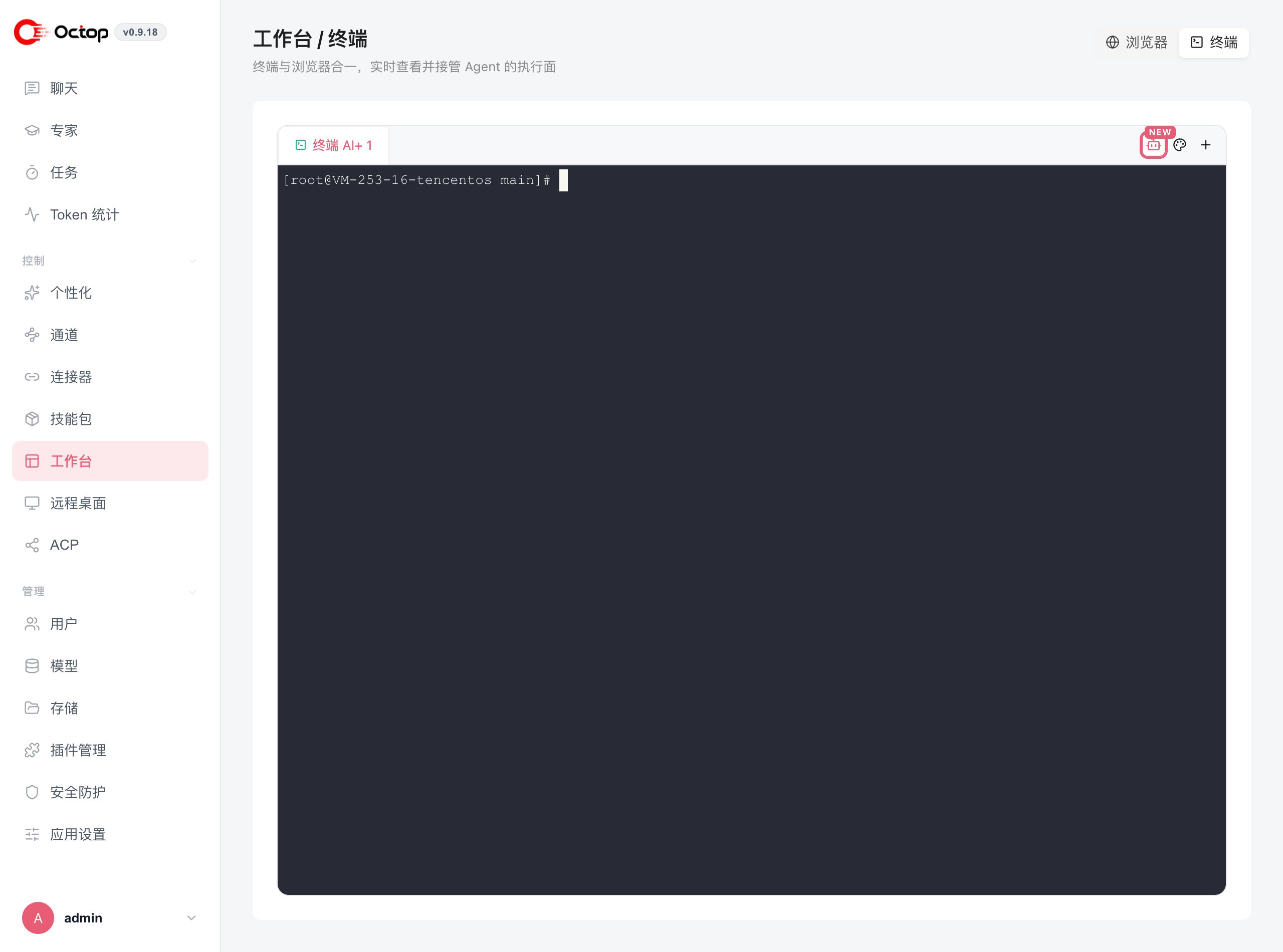
Related control pages
- Server desktop — Remote desktop
- Phone — Remote phone
Guardrails
Because the browser and terminal give agents real reach into your machine, Octop centralises the safety controls under: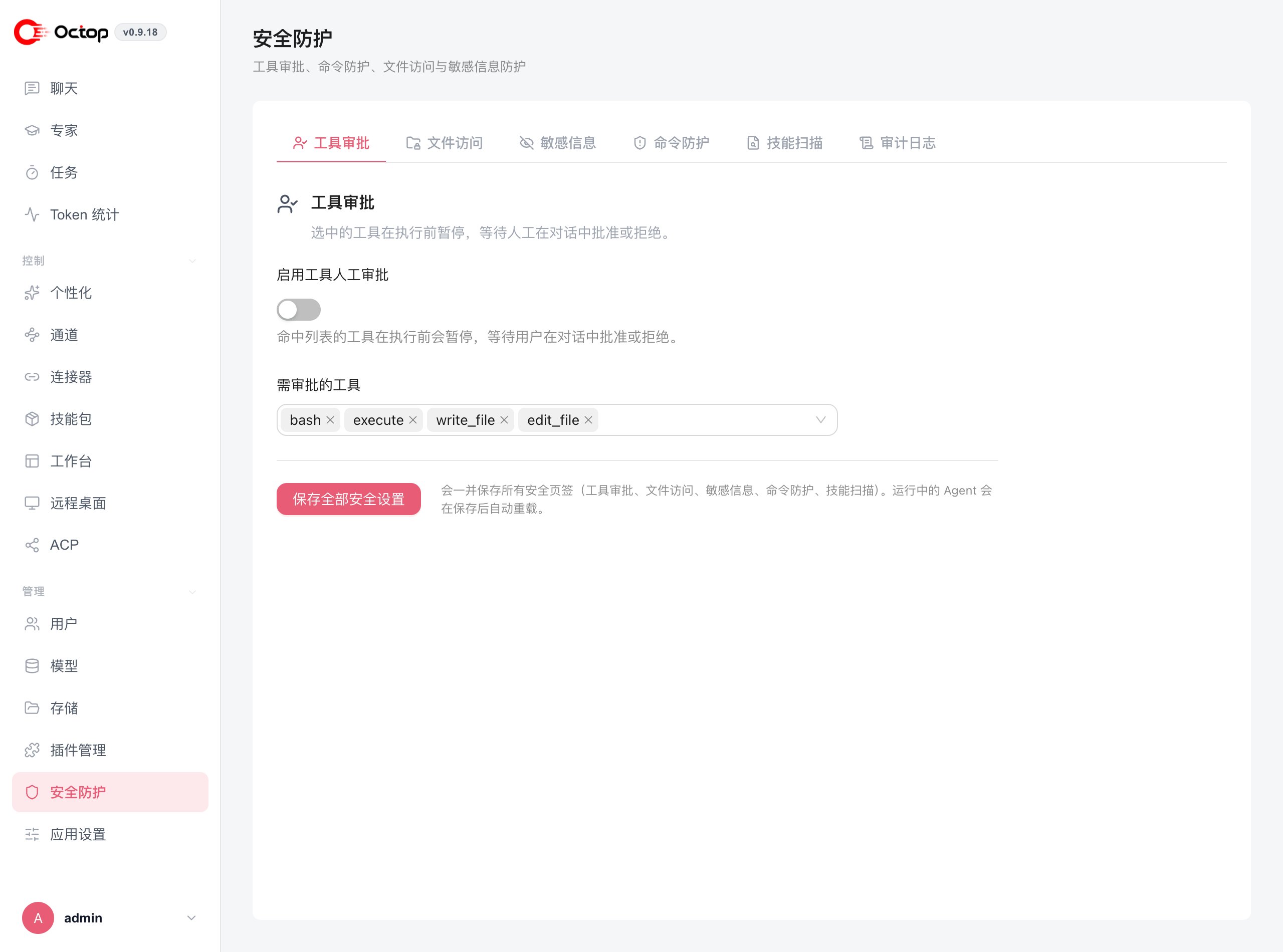
Tool approval ships enabled for the highest-risk tools —
bash, execute, write_file, and edit_file — but the master Enable manual tool approval switch is off by default. Turn it on and any tool in that list pauses for your confirmation before it runs.
Saving applies every tab at once, and running agents reload automatically afterwards.