

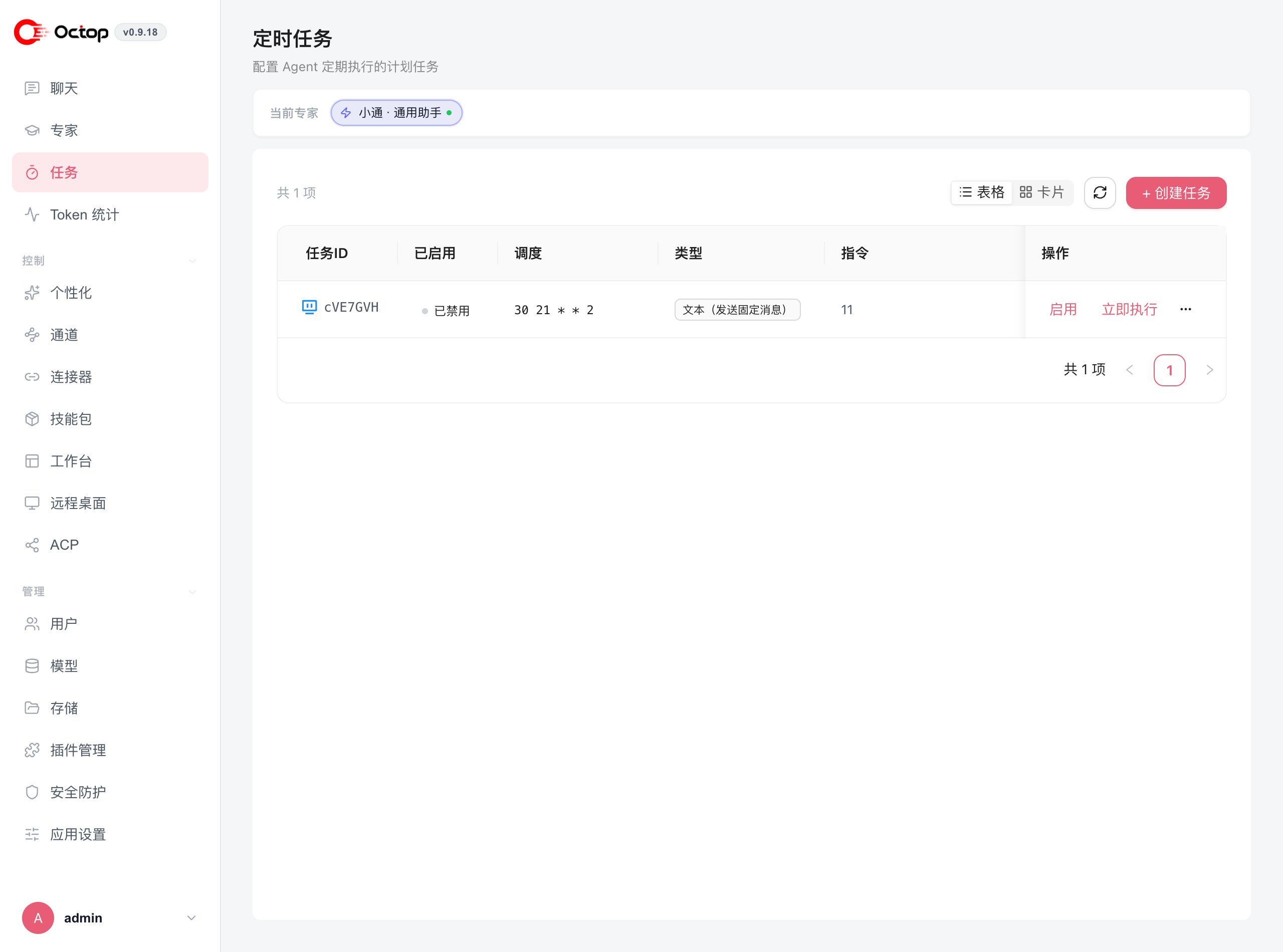
How cron jobs work
Every cron job has four parts:- Name — a display label in the task list. The web UI asks you to fill one in. The API can omit it and derive a label from the prompt.
- Trigger — when the job fires (a cron expression, an interval, or a one-time timestamp)
- Prompt — the message sent to the agent (up to 2,000 characters)
- Task type —
Agenthas the LLM process the prompt and generate a response;Textpushes the prompt directly as a plain message without LLM involvement
Create a cron job
1
Open the Tasks section
Go to Tasks in the sidebar and select the agent the job belongs to.
2
Start a new job
Click Create task.
3
Name the job
Enter a display name so you can tell jobs apart in the list.
4
Set the trigger
Enter a cron expression (for example,
0 9 * * * for 9 AM daily) or use an interval shorthand such as interval:30 for every 30 minutes.5
Write the prompt
Type your prompt in the prompt field. The limit is 2,000 characters.
6
Choose the task type
Select Agent to have the LLM process the prompt and generate a reply, or Text to send the prompt directly as a message.
7
Save
Click Save. The job is now active and will fire on the next matching trigger.